Just last night I received the email that informed me.
I want to thank Microsoft for the confidence it gave me, the people I work with in Microsys and Nino Crudele with whom it was a real pleasure to work together.


Just last night I received the email that informed me.
I want to thank Microsoft for the confidence it gave me, the people I work with in Microsys and Nino Crudele with whom it was a real pleasure to work together.
In recent weeks, I happened to integrate RabbitMQ with BizTalk Server 2013. Great, I thought, there is a magnificent TechNet article that explains how to do it.
Too bad that I had to communicate using Json.
Anyway, Eventually I succeeded, but with some customization that I want to share.
The step to follow are four:
1. Follow the article http://social.technet.microsoft.com/wiki/contents/articles/7401.biztalk-and-rabbitmq.aspx to configure all the components
2. Customize RabbitMQ .Net Client
3. Follow the article https://pellitterisbiztalkblog.wordpress.com/2014/05/05/send-and-receive-json-formatted-message-with-biztalk-server/ to Implement a custom pipeline component to receive e send Json messages
4. Configure the send and receive ports
Open the solution and modify “rabbitmq-dotnet-client-3.2.1\projects\wcf\RabbitMQ.ServiceModel\src\serviceModel\RabbitMQInputChannel.cs” file.
In particular, find the “Receive” method and change the following highlighted line of code:
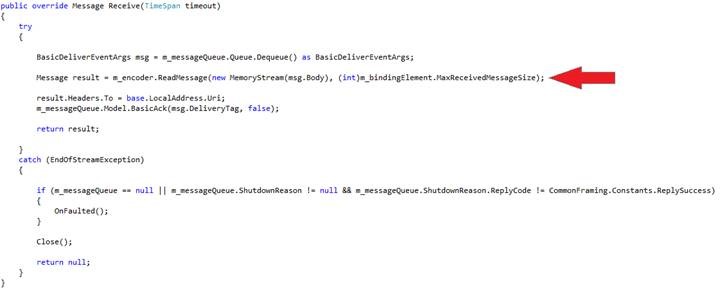
With the following:
|
var ms = new MemoryStream(msg.Body); var bodyString = Encoding.UTF8.GetString(ms.ToArray());
System.Diagnostics.Debug.Write(bodyString);
bodyString = String.Concat(@”<s:Envelope xmlns:s=””http://www.w3.org/2003/05/soap-envelope”” xmlns:a=””http://www.w3.org/2005/08/addressing””><s:Header><a:MessageID>urn:”, Guid.NewGuid().ToString(), “</a:MessageID></s:Header><s:Body>”, System.Web.HttpUtility.HtmlEncode(bodyString), “</s:Body></s:Envelope>”);
System.Diagnostics.Debug.Write(bodyString);
ms = new MemoryStream(Encoding.UTF8.GetBytes(bodyString));
Message result = m_encoder.ReadMessage(ms, (int)m_bindingElement.MaxReceivedMessageSize);
|
Then, find the “Open” method and change the following highlighted line of code:
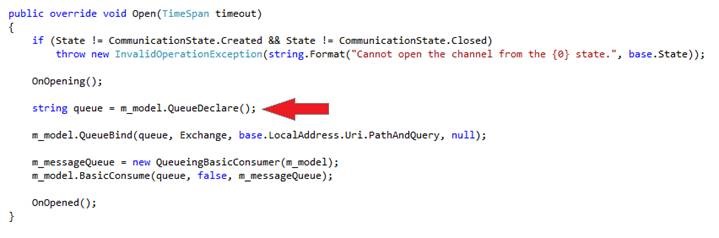
With the following:
|
string[] uriParser = base.LocalAddress.Uri.PathAndQuery.Split(“/”.ToCharArray());
// Create a queue for messages destined to this service, bind it to the service URI routing key string queue = m_model.QueueDeclare(uriParser[uriParser.Length – 1], true, false, false, null);
|
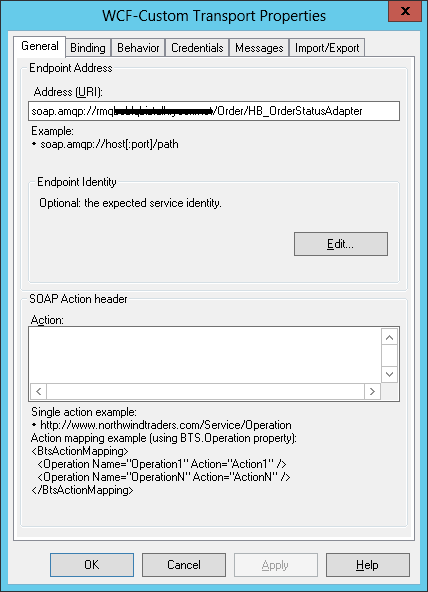
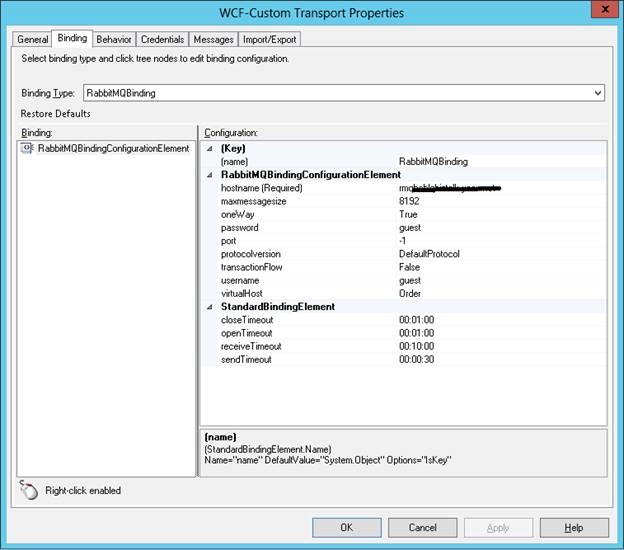
Following screenshots of the configuration to be applied to the ports.
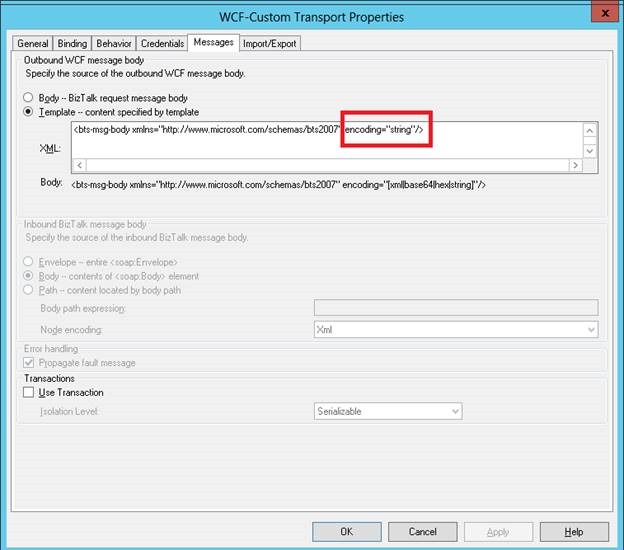
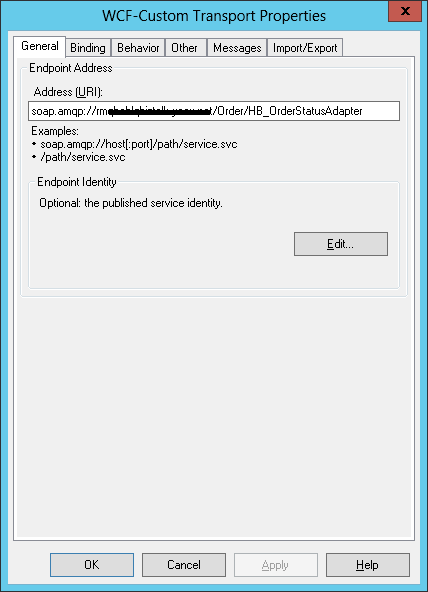
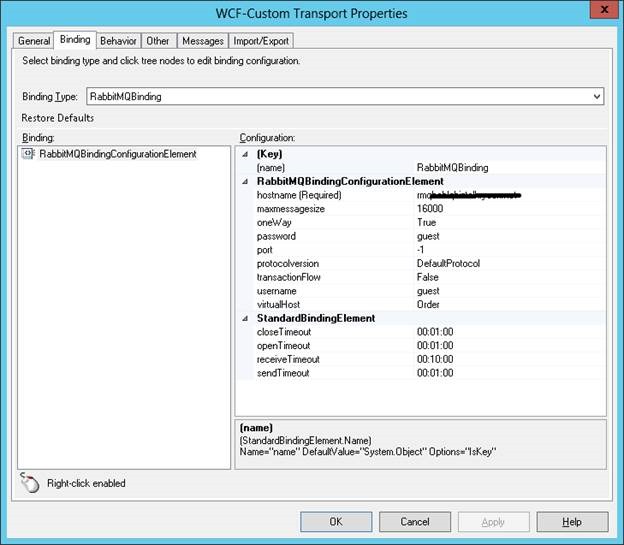
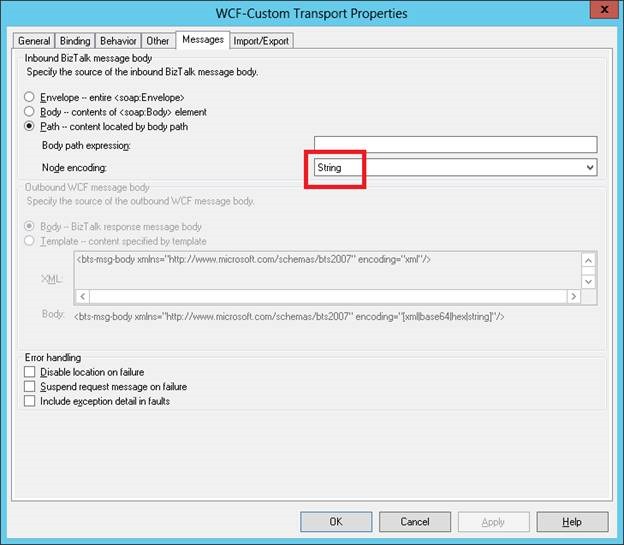
BizTalk does not send messages natively in JSON format. However, in recent years, JSON has become the format increasingly widespread.
In order to better use the messaging services of BizTalk limiting as much as possible customizations, normally I use the custom pipeline components for both send and receive operations.
The receive statement is very simple since it is sufficient build a pipeline component that converts JSON formatted message into xml and set a target namespace.
The send statement is slightly more complex because you need to instruct the JSON converter for xml nodes of multiplicity greater than one.
This allows you to correctly generate the JSON array.
To do that, you need work inside the schema, where in any element with multiplicity greater than one, you must specify the attribute json:array equal to true.
We begin by constructing a schema that defines the namespace attribute in JSON.
|
<?xmlversion=“1.0“encoding=“utf-16“?> <xs:schemaxmlns:b=“http://schemas.microsoft.com/BizTalk/2003“ xmlns:tns=“http://james.newtonking.com/projects/json“ attributeFormDefault=“unqualified“elementFormDefault=“qualified“ targetNamespace=“http://james.newtonking.com/projects/json“ xmlns:xs=“http://www.w3.org/2001/XMLSchema“> <xs:attributename=“Array“type=“xs:boolean“ /> </xs:schema>
|
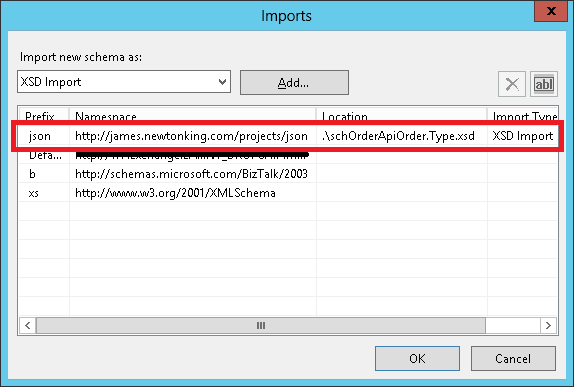
Once built, you must import it.
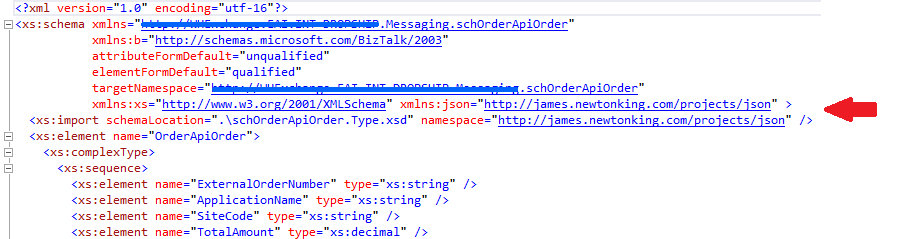
Following the XML result.
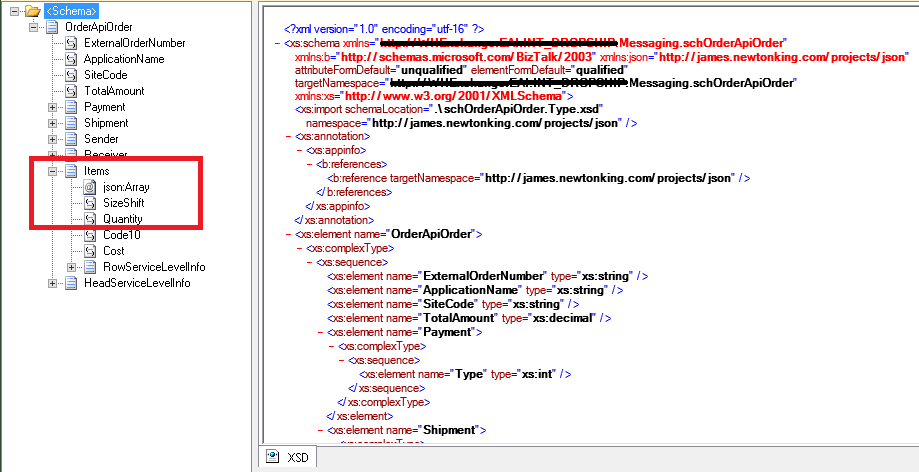
Then you can define the attribute as JSON array.
Defined the schema, you have to implement the send pipeline component. Below is a code example.
|
public Microsoft.BizTalk.Message.Interop.IBaseMessage Execute(Microsoft.BizTalk.Component.Interop.IPipelineContext pContext, Microsoft.BizTalk.Message.Interop.IBaseMessage pInMsg) {
if (pInMsg.BodyPart != null) {
XmlDocument xmlMessage = new XmlDocument(); xmlMessage.Load(pInMsg.BodyPart.GetOriginalDataStream());
foreach (XmlAttribute attribute in xmlMessage.DocumentElement.Attributes) { if (attribute.Name != “xmlns:json”) { xmlMessage.DocumentElement.RemoveAttribute(attribute.Name); } }
string jsonMessage = JsonConvert.SerializeXmlNode(xmlMessage, Newtonsoft.Json.Formatting.None, true);
pInMsg.BodyPart.Data = new MemoryStream(new UTF8Encoding().GetBytes(jsonMessage));
}
return pInMsg; } |
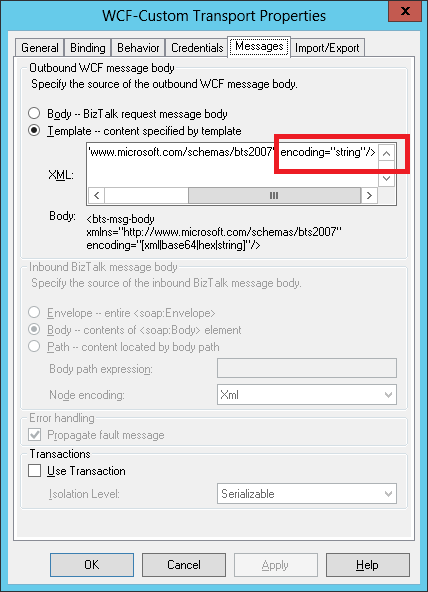
Finally, it is necessary to remove the XML envelope from the WCF layer.
The BAM is a very useful tool that my clients appreciate more and more. The most interesting aspect is that it is a framework on which you can build reports and dashboards using Analysis Services, the OLTP database or web services.
When you implements a sets of very complex activities and views, may become difficult to update the structure of activities adding or removing columns. Update the schema of the activities often requires its redefinition that causes the loss of data already present.
With my team we have created a set of stored procedures based on SQL Server in order to save and restore the data.
Below I have reported some examples.
Database Creation:
|
CREATEDATABASE[BAMPrimaryImportUtilities] GO
|
Procedure that saves the data:
|
USE[BAMPrimaryImportUtilities] GO
CREATEPROCEDURE[dbo].[SaveActivity] @activityNameNVARCHAR(128) AS BEGIN
SETNOCOUNTON;
DECLARE@resultTABLE (actionPartVARCHAR(200),valuePartVARCHAR(200)); DECLARE@sqlStatementNVARCHAR(2000);
IFEXISTS(SELECT*FROMsys.objectsWHEREobject_id=OBJECT_ID(N'[dbo].[bam_’+@activityName+‘_Completed]’)ANDtypein(N’U’)) BEGIN SET@sqlStatement=‘DROP TABLE [dbo].[bam_’+@activityName+‘_Completed]’
EXECUTEsp_executesql@sqlStatement; END
IFEXISTS(SELECT*FROMsys.objectsWHEREobject_id=OBJECT_ID(N'[dbo].[bam_’+@activityName+‘_CompletedRelationships]’)ANDtypein(N’U’)) BEGIN SET@sqlStatement=‘DROP TABLE [dbo].[bam_’+@activityName+‘_CompletedRelationships]’
EXECUTEsp_executesql@sqlStatement; END
SET@sqlStatement=‘ SELECT * INTO dbo.[bam_’+@activityName+‘_Completed] FROM BAMPrimaryImport.dbo.[bam_’+@activityName+‘_Completed]’;
EXECUTEsp_executesql@sqlStatement; INSERTINTO@result(actionPart,valuePart)VALUES (‘bam_’+@activityName+‘_Completed: ‘,CONVERT(VARCHAR,@@ROWCOUNT));
SET@sqlStatement=‘ SELECT * INTO dbo.[bam_’+@activityName+‘_CompletedRelationships] FROM BAMPrimaryImport.dbo.[bam_’+@activityName+‘_CompletedRelationships]’;
EXECUTEsp_executesql@sqlStatement; INSERTINTO@result(actionPart,valuePart)VALUES (‘bam_’+@activityName+‘_CompletedRelationships: ‘,CONVERT(VARCHAR,@@ROWCOUNT));
SELECT*FROM@result;
END
|
Procedure that restores the data
|
CREATEPROCEDURE[dbo].[RestoreActivity] @activityNameNVARCHAR(128) AS BEGIN
SETNOCOUNTON;
DECLARE@resultTABLE (actionPartVARCHAR(200),valuePartVARCHAR(200)); DECLARE@columnListVARCHAR(4000)=”; DECLARE@columnVARCHAR(256); DECLARE@sqlStatementNVARCHAR(4000);
— Column List DECLAREcurColumnListCURSORFOR SELECT PrimaryImportInfo.COLUMN_NAME
FROM BAMPrimaryImport.INFORMATION_SCHEMA.COLUMNSPrimaryImportInfo
INNERJOINBAMPrimaryImportUtilities.INFORMATION_SCHEMA.COLUMNSSavedInfo ONPrimaryImportInfo.TABLE_NAME=SavedInfo.TABLE_NAME ANDPrimaryImportInfo.COLUMN_NAME=SavedInfo.COLUMN_NAME WHERE PrimaryImportInfo.TABLE_NAME=‘bam_’+@activityName+‘_Completed’
ORDERBY PrimaryImportInfo.ORDINAL_POSITION;
OPENcurColumnList; FETCHNEXTFROMcurColumnListINTO@column;
WHILE@@FETCH_STATUS= 0 BEGIN SET@columnList=@columnList+‘[‘+@column+‘],’+CHAR(13)
FETCHNEXTFROMcurColumnListINTO@column; END
CLOSEcurColumnList; DEALLOCATEcurColumnList;
SET@columnList=LEFT(@columnList,LEN(@columnList)–2)+CHAR(13);
— Insert Statement SET@sqlStatement=‘SET IDENTITY_INSERT BAMPrimaryImport.dbo.[bam_’+@activityName+‘_Completed] ON;
INSERT INTO BAMPrimaryImport.dbo.[bam_’+@activityName+‘_Completed] (‘+@columnList+‘) SELECT ‘+@columnList+‘ FROM BAMPrimaryImportUtilities.dbo.[bam_’+@activityName+‘_Completed];’;
EXECUTEsp_executesql@sqlStatement; INSERTINTO@result(actionPart,valuePart)VALUES (‘bam_’+@activityName+‘_Completed: ‘,CONVERT(VARCHAR,@@ROWCOUNT));
SET@sqlStatement=‘INSERT INTO BAMPrimaryImport.dbo.[bam_’+@activityName+‘_CompletedRelationships] SELECT * FROM BAMPrimaryImportUtilities.dbo.[bam_’+@activityName+‘_CompletedRelationships]’;
EXECUTEsp_executesql@sqlStatement; INSERTINTO@result(actionPart,valuePart)VALUES (‘bam_’+@activityName+‘_CompletedRelationships: ‘,CONVERT(VARCHAR,@@ROWCOUNT));
SELECT*FROM@result;
END
|
The previous procedures represent a starting point. You can enrich them, working on views, for example, you can save all the activities of a view by accessing the table “BAMPrimaryImport.dbo.bam_Metadata_ActivityViews”.
In addition, you can automate the deployment by implementing a console application that calls the stored procedure.
Something like that:
![clip_image002[4]](https://pellitteris.net/wp-content/uploads/2014/04/clip_image0024.jpg "clip_image002[4]")
With the rapid evolution of the services on the cloud, it is important to integrate an on-premises process with processes running in Microsoft Azure.
One of the major requirements may be to implement integration flows between systems running on-premises and Microsoft SQL Azure Database.
To do this with BizTalk Server, it is important to remember the following requirements:
· Windows authentication is not supported, use SQL Server instead.
· SSL is not required but is strongly recommended.
· Distributed Transactions are not supported.
So, when you run the wizard for creating the schema is essential to specify SQL authentication.
![clip_image001[6]](https://pellitteris.net/wp-content/uploads/2014/04/clip_image0016.png "clip_image001[6]")
Then the specify Server and Database name.
![clip_image002[6]](https://pellitteris.net/wp-content/uploads/2014/04/clip_image0026.png "clip_image002[6]")
At this time, is not necessary to activate the encryption and disable the transaction, but remember to do that in the port settings from the administration console.
![clip_image003[6]](https://pellitteris.net/wp-content/uploads/2014/04/clip_image0036.png "clip_image003[6]")
If you forget to disable the support for the transactions, you will find the following error message in the application log:
|
The partner transaction manager has disabled its support for remote/network transactions. (Exception from HRESULT: 0x8004D025)
|
![clip_image004[4]](https://pellitteris.net/wp-content/uploads/2014/04/clip_image0044.png "clip_image004[4]")
If you try to use Windows authentication, you will find the following error message in the application log:
|
Windows logins are not supported in this version of SQL Server
|
![clip_image005[4]](https://pellitteris.net/wp-content/uploads/2014/04/clip_image0054.png "clip_image005[4]")
Friday, March 28th at the Microsoft Innovation Campus in Rome, Thursday, April 3 at the Microsoft Innovation Campus in Milan, I will be present at the Technical Cloud Day 2014.

I will be one of the speakers and together with Nino Cruel talk about Windows Azure BizTalk Services and Windows Azure SQL Database.
Microsoft, Microsys and Inside Technologies will be the sponsor of the event.
You can find more information on the website http://technicalcloudday.azurewebsites.net/
If you have a BizTalk Server 2013 installed on Windows Server 2012 and configure receive or send ports that access to third-party NAS via UNC paths, you may receive the error code 0x80004005.
In this scenario, only one Windows process at a time is able to access to the remote share, the other processes will fail.
Therefore, the problem exists if multiple receive or send ports are configured on different BizTalk hosts.
In addition, if you enable the ports, trying to access the remote share from Windows Explorer you will get the following error:
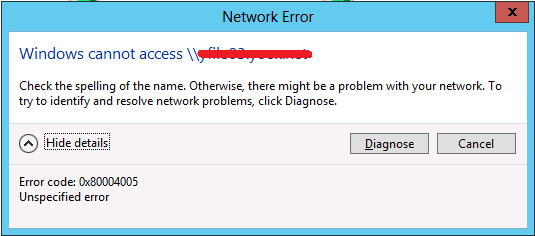
The problem is not related to BizTalk layer, but to Windows Server 2012-based or Windows 8-based computer that fail to connect to a third-party file server that supports the SMBv2 file protocol. In fact, you can reproduce the problem following the step below:
· Log on with a first user to Windows Server 2012;
· Log on with a second user to the same machine;
· Both users should try to map a network drive specifying the same remote folder;
· The second user should get the error.
At this moment, to allow the ports configured on multiple BizTalk hosts to works fine, you have to disable SMBv2 and SMBv3 protocol forcing the communications on SMBv1.
To do that execute the following commands:
|
sc.exe config lanmanworkstation depend= bowser/mrxsmb10/nsi sc.exe config mrxsmb20 start= disabled
|
Additional information on how to enable and disable Server Message Block (SMB) version 2 (SMBv2) and SMB version 3 (SMBv3) on the SMB client and server components, can be found at this address http://support.microsoft.com/kb/2696547.
Remember that SMBv1 must be configured in order to works correctly with BizTalk server environments.
By default with SMBv1 are allowed just 50 client connections and 265 server connections. Typically these value are not compatible with integration scenarios.
So you have to modify the following registry settings in order to grow the number of concurrent sessions.
Registry Key:
HKEY_LOCAL_MACHINE\SYSTEM\CurrentControlSet\Services\LanmanWorkstation\Parameters
Parameter:
MaxCmds (DWORD)
Possible values: 1-65535
Default Value: 50
Example Value: 16384
Registry Key:
HKEY_LOCAL_MACHINE\SYSTEM\CurrentControlSet\Services\LanmanServer\Parameters
Parameter:
MaxMpxCt (DWORD)
Possible values: 1-65535
Example Value: 4096
Parameter:
MaxWorkItems (DWORD)
Possible values: 1-65535
Example Value: 16384 (Should be at least MaxMpxCt * 4)
Well, in a technological age in which everyone is talking about Cloud, Windows Azure and BizTalk Services, it seems strange to talk about AS/400, but at least in Italy there are still many installations and I found few example of its use with BizTalk Server.
This article shows how to implement a simple receiving flow from AS/400 system to a target system. The example shown below reports the steps for installing the necessary components, to apply a basic configuration to a receiving port and to generate the message schema that you will receive from the AS/400.
Additional artifact such as target systems schema messages, maps or orchestration I take them for granted.
From the Microsoft Host Integration Server 2013 cd run setup.
On License Agreement screen select “Yes, I accept the Items…” and click Next.
![clip_image002[11]](https://pellitteris.net/wp-content/uploads/2014/02/clip_image00211.jpg "clip_image002[11]")
On Usage Reporting Settings page make a selection and click Next.
![clip_image004[9]](https://pellitteris.net/wp-content/uploads/2014/02/clip_image0049.jpg "clip_image004[9]")
On Component Installation screen select at least the components shown below and click Next.
![clip_image006[9]](https://pellitteris.net/wp-content/uploads/2014/02/clip_image0069.jpg "clip_image006[9]")
![clip_image008[9]](https://pellitteris.net/wp-content/uploads/2014/02/clip_image0089.jpg "clip_image008[9]")
Then click on Install.
![clip_image010[9]](https://pellitteris.net/wp-content/uploads/2014/02/clip_image0109.jpg "clip_image010[9]")
From BizTalk Server Administration console create a new port.
![clip_image011[9]](https://pellitteris.net/wp-content/uploads/2014/02/clip_image0119.png "clip_image011[9]")
Specify the typical port properties
![clip_image013[9]](https://pellitteris.net/wp-content/uploads/2014/02/clip_image0139.jpg "clip_image013[9]")
![clip_image015[9]](https://pellitteris.net/wp-content/uploads/2014/02/clip_image0159.jpg "clip_image015[9]")
![clip_image017[9]](https://pellitteris.net/wp-content/uploads/2014/02/clip_image0179.jpg "clip_image017[9]")
Select DB2 adapter and click Configure. Build the connection string as first step.
![clip_image018[9]](https://pellitteris.net/wp-content/uploads/2014/02/clip_image0189.png "clip_image018[9]")
The wizard starts.
![clip_image019[9]](https://pellitteris.net/wp-content/uploads/2014/02/clip_image0199.png "clip_image019[9]")
Select DB2/AS400 as data source platform.
![clip_image020[9]](https://pellitteris.net/wp-content/uploads/2014/02/clip_image0209.png "clip_image020[9]")
Specify the AS/400 Network Name o IP address and a port number.
![clip_image021[9]](https://pellitteris.net/wp-content/uploads/2014/02/clip_image0219.png "clip_image021[9]")
Specify at least the initial catalog, the package collection and the default schema.
![clip_image022[9]](https://pellitteris.net/wp-content/uploads/2014/02/clip_image0229.png "clip_image022[9]")
Choose the international locale settings.
![clip_image023[9]](https://pellitteris.net/wp-content/uploads/2014/02/clip_image0239.png "clip_image023[9]")
Then write the credentials.
![clip_image024[9]](https://pellitteris.net/wp-content/uploads/2014/02/clip_image0249.png "clip_image024[9]")
To receive data from AS/400 is enough select the following advanced options.
![clip_image025[9]](https://pellitteris.net/wp-content/uploads/2014/02/clip_image0259.png "clip_image025[9]")
On the review the connection properties page click Next.
![clip_image026[9]](https://pellitteris.net/wp-content/uploads/2014/02/clip_image0269.png "clip_image026[9]")
On the Validation screen click on Packages to generate package on AS/400 library.
![clip_image027[9]](https://pellitteris.net/wp-content/uploads/2014/02/clip_image0279.png "clip_image027[9]")
The connection string is composed. Now we have to specify the SQL Command.
![clip_image028[9]](https://pellitteris.net/wp-content/uploads/2014/02/clip_image0289.png "clip_image028[9]")
Specify a SQL Command statement.
![clip_image029[9]](https://pellitteris.net/wp-content/uploads/2014/02/clip_image0299.png "clip_image029[9]")
Note. To write and test SQL statement, typically I use Microsoft SQL Server Management console configuring a linked server to AS/400 system.
Now you have to specify “Document Root Element Name” and “Document Target Namespace” properties.
![clip_image030[9]](https://pellitteris.net/wp-content/uploads/2014/02/clip_image0309.png "clip_image030[9]")
There are two option to generate AS/400 inbound schema:
· Use thewizardfrom Visual Studio(this notalwaysgeneratesa schemethat works)
· Activate the AS/400 receive port and write the output instance on a folder. Then using XML well formed generation schema to import the schema.
From Visual Studio start Add Generated Items wizard.
![clip_image032[9]](https://pellitteris.net/wp-content/uploads/2014/02/clip_image0329.jpg "clip_image032[9]")
Choose Add Adapter Metadata.
![clip_image034[9]](https://pellitteris.net/wp-content/uploads/2014/02/clip_image0349.jpg "clip_image034[9]")
Select DB2, then select the port created in the previous step.
![clip_image035[9]](https://pellitteris.net/wp-content/uploads/2014/02/clip_image0359.png "clip_image035[9]")
Select the existing connection string.
![clip_image036[9]](https://pellitteris.net/wp-content/uploads/2014/02/clip_image0369.png "clip_image036[9]")
Specify the same target namespace and root element name, chosen during port creation.
![clip_image037[9]](https://pellitteris.net/wp-content/uploads/2014/02/clip_image0379.png "clip_image037[9]")
Then select the statement type (select statement in my case).
![clip_image038[9]](https://pellitteris.net/wp-content/uploads/2014/02/clip_image0389.png "clip_image038[9]")
Specify the select sql script that the receive port will execute.
![clip_image039[9]](https://pellitteris.net/wp-content/uploads/2014/02/clip_image0399.png "clip_image039[9]")
Now you have your AS/400 schema
![clip_image040[9]](https://pellitteris.net/wp-content/uploads/2014/02/clip_image0409.png "clip_image040[9]")
From BizTalk Administration console, open the AS/400 receive location properties window an select (temporary) the PassThuReceive pipeline.
![clip_image042[9]](https://pellitteris.net/wp-content/uploads/2014/02/clip_image0429.jpg "clip_image042[9]")
Then create a send port.
![clip_image044[9]](https://pellitteris.net/wp-content/uploads/2014/02/clip_image0449.jpg "clip_image044[9]")
On the Filters tab, specify BTS.ReceivePortName equal to SampleQuery. This allow you to write messages coming from AS/400 in a folder.
![clip_image046[9]](https://pellitteris.net/wp-content/uploads/2014/02/clip_image0469.jpg "clip_image046[9]")
Enable both receive location and send port. In the destination folder you will find an instance of message coming from AS/400 system.
Now, from Visual Studio you can use that instance to generate a schema.
![clip_image048[9]](https://pellitteris.net/wp-content/uploads/2014/02/clip_image0489.jpg "clip_image048[9]")
Select Well-Formed XML and specify the generated file.
![clip_image049[9]](https://pellitteris.net/wp-content/uploads/2014/02/clip_image0499.png "clip_image049[9]")
So you have your schema.
![clip_image051[9]](https://pellitteris.net/wp-content/uploads/2014/02/clip_image0519.jpg "clip_image051[9]")
Normally, when I am asked to configure a BizTalk farm in high availability, I immediately think the simplest scenario where there is a SQL Server configured in failover cluster and at least two BizTalk nodes configured in network load balancing.
However, on some occasions, I’ve had to think of a failover cluster configuration for the front-end BizTalk. This is because some critical integration flows were based on FTP or POP3 ports, which are not supported in network load balancing configuration.
Just a couple of months ago I implemented a farm BizTalk 2013 on Windows 2012 and I wanted to add a few notes on the documentation found on MSDN that specifically refers to Windows 2008.
The article to which I refer is “How to Cluster SSO and a BizTalk Host in the Same Cluster Group” (http://msdn.microsoft.com/en-us/library/aa559783(v=bts.80).aspx).
Although the differences related to the user interface between the management console of the failover cluster of Windows 2008 and Windows 2012 are remarkable, I have not found it necessary to rewrite the document that I think is sufficiently comprehensive as it is. I just wanted to add two small notes which made me lose a few hours of time.
The first note concerns the configuration of the cluster resource dependencies. In particular, when from the BizTalk Administration Management Console, you configure a host as cluster resource, a corresponding cluster resource is created in the specified cluster resource group. Once you have created the resource, from the administrative console of the cluster, you must manually add the following dependencies:
· [Your Virtual Server Name]
· Enterprise Single Sign-On Service
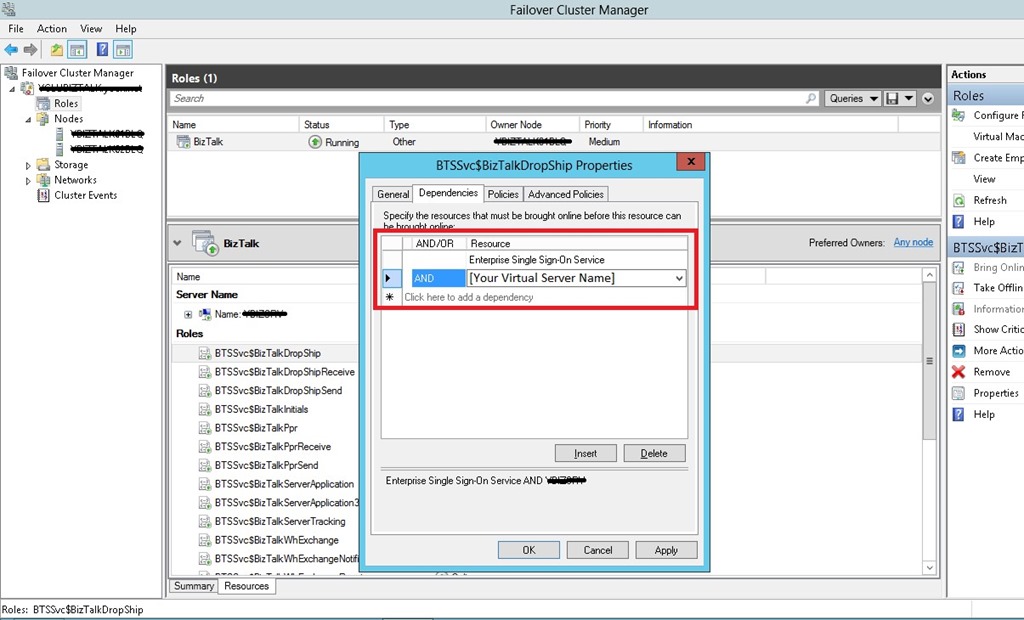
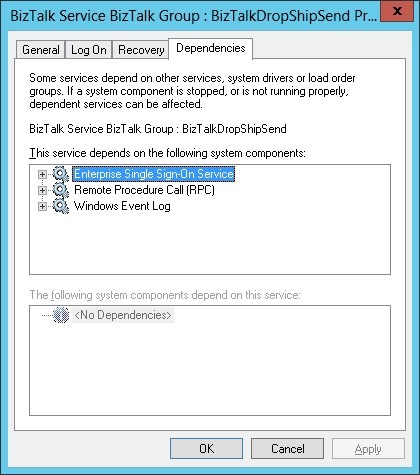
The dependence between BizTalk host and Enterprise Single Sign-On service is not documented, but if not specified, during the start of the services is possible that the BizTalk host starts the SSO service outside of the context of the cluster, causing a malfunction of the services.
This occurs because the BizTalk host has a dependency with the SSO service at Windows level.
The MSDN article, refer you to another article for the IIS configuration as failover cluster resource “Configuring IIS 7.0 or later World Wide Web Publishing Service in a Windows Server 2008, Windows Server 2008 R2, or Windows Server 2012 failover cluster” (http://support.microsoft.com/kb/970759).
In the document section named “Set up a file share that will be used for IIS shared configuration” the possible scenario are listed. The scenario most natural, that proposes to configure the share on the same failover cluster that will host the high availability web site, it created me some issues. In particular, the IIS resource can take a long time to be available and in some cases it fails.
To prevent this behavior I suggest you to configure the share outside the BizTalk cluster.
In all integration projects that I made, I had to provide documentation relating to ports configurations especially in terms of addresses.
Moreover, what is need is a vision for integration flow and not by type of objects. So not a document that lists all the receive ports with all configurations, all orchestration with all configurations and all send ports with all configurations, but a document that divides objects by integration flow. E.g. flow number 1: receive ports, orchestration and send ports involved.
In addition, the configurations in this sense, change often and it is not easy to keep up to date documents.
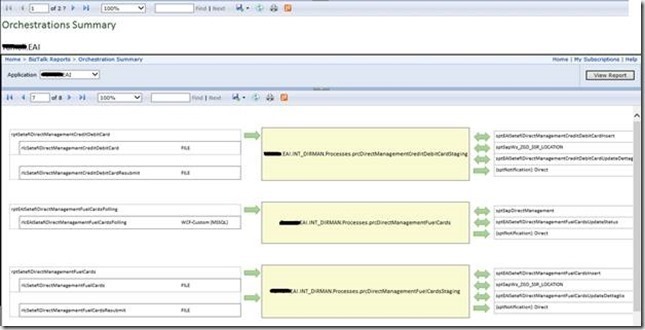
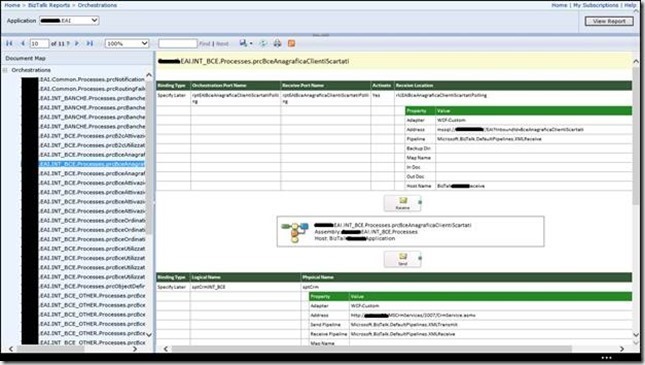
For this reason I have developed some reports based on Microsoft Reporting Services that provide this vision of a configuration of a BizTalk Server farm for what concerns the ports, orchestrations and pipelines.
It is just an example, but which can be extended or modified as needed.
The example solution that I made is based on a database and a small group of reports.
In the database there are views and stored procedures needed to execute the reports, containing only data access logic to the tables of the BizTalk Management database (BizTalkMgmtDb), so it must be created in the same instance of the BizTalk operating databases.
Note that if the database management has a different name from BizTalkMgmtDb, the setup script (BizTalkReport.sql) should be modified specifying the correct name.
The advantage of using SQL Server Reporting Services is that you can access the documentation online, or you can export your documents in different formats such as PDF, Word, Excel and so on in order to be included in the project documentation.
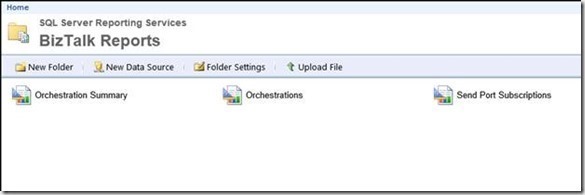
Once you install the report and the database you get the scenario shown in the following figures.
Home Page
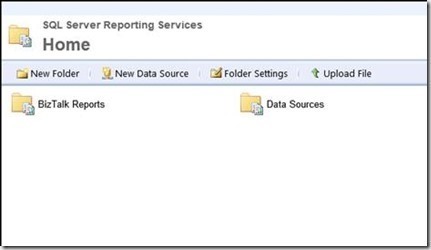
BizTalk Reports Folder
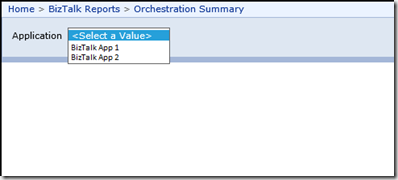
When you select a report, you are prompted to specify the application that you want to document.
Orchestration Summary Report
Orchestrations Report
Send Port Subscriptions Report
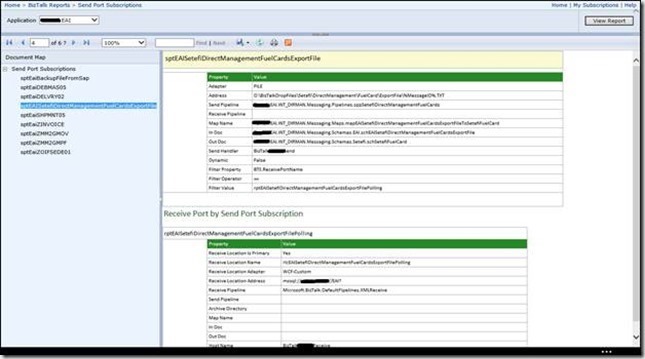
You can download the sample in the following link: BizTalkConfigurationReport-zip.pdf
How to install the solution.
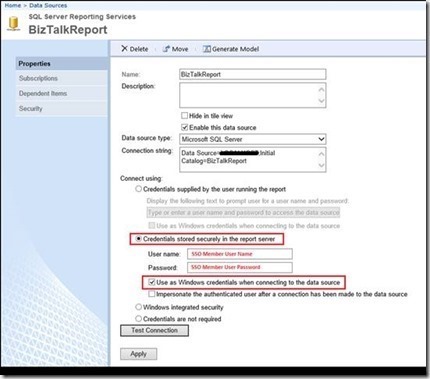
The user that access the report should be member of SSO Administrators and BizTalk Administrators, so you have to configure the data source credential as follow.
 Salvatore Pellitteri's Integration Blog