
In recent years I often integrate Microsoft Dynamics CRM by using BizTalk Server, and as many know, BizTalk Server does not have a native connector for MS CRM.
For this reason, we must work hard to generate canonical schemas, to resolve lookup type fields, Guid type fields and generally to develop maps.
To increase the productivity of my team I have always tried to develop tools or helpers to automate the development of long and repetitive tasks, reducing the possibility of generating errors and standardize approaches to problems.
In recent months, with the cooperation of Nino Crudele and Sandro Pereira we published several functoids that simplify integration with Dynamics CRM and in this article I want to describe the work that has been done to also integrate the CRM Online.
When you integrate MS CRM using BizTalk Server, typically you have at least two problems:
- Transcode the Lookup and Guid type fields
- Mapping the input information with the generic schema exposed by CRM
The BizTalk Mapper Extension Utility pack simplifies both tasks by providing specialized functoids.
Today we released a new version where you can find the CRM Lookup functoid with two new features:
- The ability to define more than one configuration in the SSO. This allows of integrating more than one CRM instance with a single BizTalk Farm
- Now you can integrate CRM On-Line. CRM Lookup, for performance reasons, performs lookups operation by accessing the CRM database in read only. However, the CRM Online does not expose his database, so we added the ability to do lookups using the native CRM web services that are present in both the online and on-premises versions.
The functoid now takes five mandatory input parameters:
- SSO Application Name: the connection parameters are stored inside SSO. Here you have to specify the application name where you decide to store the settings. This allow you to have multiple CRM environments that you can integrate;
- CRM Guid Field Name: key field name of which you want to get the value;
- CRM Entity Name: CRM entity name on which the resolution will be performed
- CRM Input Field Name: imagining having a “code” as input and you want to know the CRM physical key, in this attribute should specify the name of the “code” field.
- CRM Input Value: value from source system to resolve
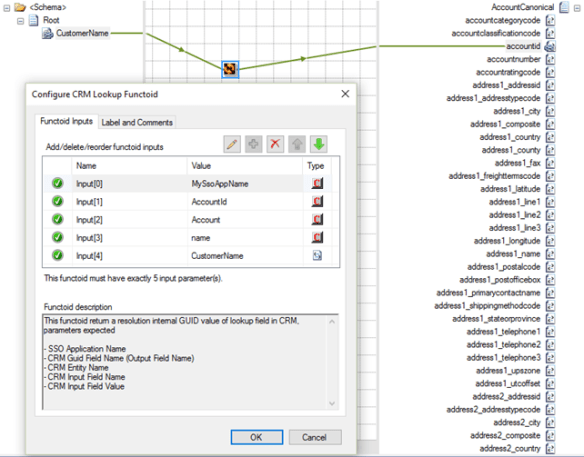
The output of the functoid is a string, Example: 6erg5r-sdrf56-4dfgt5-6ty5r4-456trt 24
Installation
Download and install BizTalk Mapper Extensions UtilityPack from https://btsmapextutilitypack.codeplex.com/.
Download CRM Sdk and register in GAC the following assemblies:
- Microsoft.Xrm.Sdk.dll (version 5.0.9910.15)
Create a SSO application by using SSO Configuration Application MMC Snap-In available at https://www.microsoft.com/en-us/download/details.aspx?id=14524.
SQL Server Lookup
Create the following SSO configuration parameters
- CrmConnectionType: “sql”
- CrmDatabaseConnectionString: specify the CRM database connection string
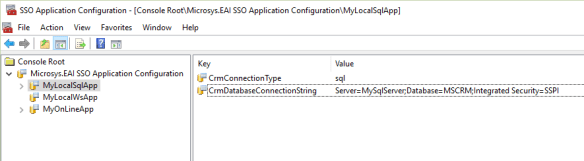
Open SQL Server management console, connect to CRM database and execute the script under CRMLookup.sql file in project folder.
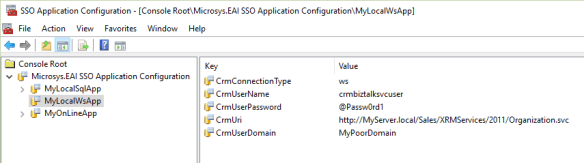
Local CRM web services lookup
Create the following SSO configuration parameters
- CrmConnectionType: “ws”
- CrmUserName: specify a valid CRM user name
- CrmUserDomain: specify a user active directory domain name
- CrmUserPassword: specify the user password
- CrmUri: specify the CRM web service url (ex: http://MyCrmServer/MyCrmInstance/XRMServices/2011/Organization.svc)
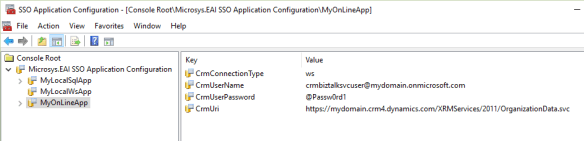
CRM Online web services lookup
Create the following SSO configuration parameters
- CrmConnectionType: “ws”
- CrmUserName: specify a valid CRM user name (ex: harry@mydomain.onmicrosoft.com
- CrmUserPassword: specify the user password
- CrmUri: specify the CRM web service url (ex: https://mydomain.crm4.dynamics.com/XRMServices/2011/OrganizationData.svc )


That’s pretty cool but in new projects you shouldn’t use the CRM 2011 Endpoint anymore. Instead use the Web API which is intended to replace the CRM 2011 endpoint, also known as the SOAP endpoint.
Yes, It may be another possibility even if I think we should work a little in order to use OData interface.
Hi Salvatore, Thanks for creating this functoID, I have been trying to make it work but it’s not working, it’s not throwing any error but in the output I get empty string, I am using it to connect to CRM online (as mentioned in your post), I tried to put an invalid URL of the Organization service in SSO but even then it didn’t through any error, can you please help me with this?
Hi sajid81, you have to use DebugView to see the errors. Anyway for additional info contact me by e-mail at pellitteris@hotmail.com.